Booking a space
Every room and bay in the club books the same way. Learn it once here and it works everywhere.
clubhouseedina.com/members/booking/ · the online version is always the most current
What you can book
What you see depends on your membership, so your list may be shorter than this one.
Trackman Simulator Bays 1 and 2
Book a bay for practice or a round. Up to six people per bay. Free for members whose plan includes the bays.
North Conference Room
Seats nine. Client meetings, team sessions, interviews.
South Conference Room
The larger room, seating fifteen. Presentations and training.
2nd Floor Conference Room
Seats fifteen. Booked the same way as the other conference rooms.
Call Rooms 01 to 04
Private rooms for phone and video calls, included with every membership.
Social and Golf Space
The lounge and bays together, for events, client entertaining or a group session.
Private offices are assigned to you, so they are always yours. Open desks are first come, first served. The putting green is a shared space for members, so there is nothing to book.
Making a booking
Start from the home screen
Open the app and tap the button for the kind of space you want: Call Rooms, Simulators or Conference Rooms.
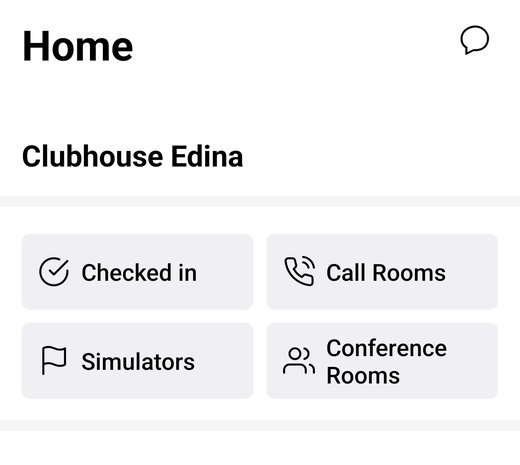
Booking starts from the buttons on the home screen. Pick the day
Choose today, tomorrow, or a later date from the calendar.
Set the time
Use the time and length controls to show what is open when you need it. Shaded times are already taken.
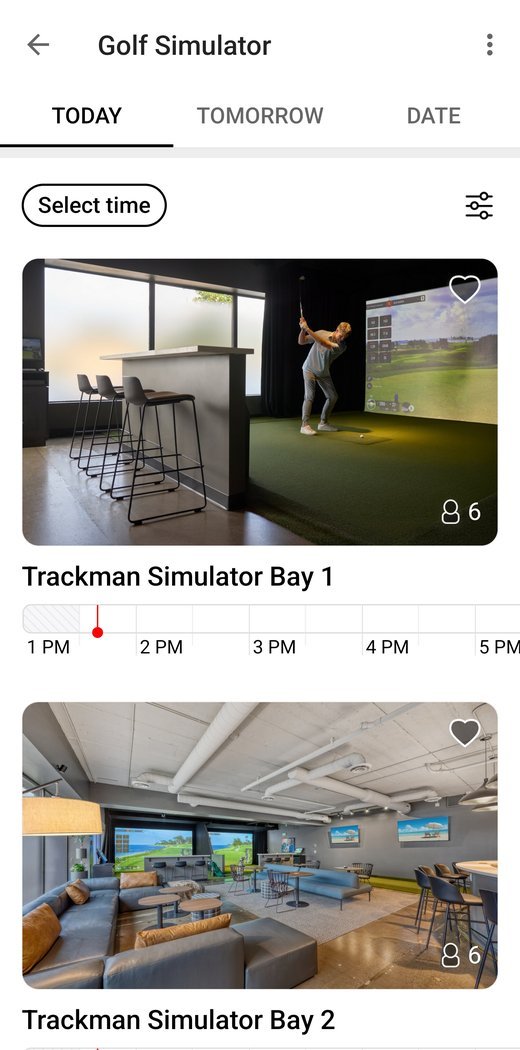
Shaded times are already booked. Tap the space
Tap the room or bay you want, drag the sliders to fine tune the start and end, then tap Book now. Tap More options first if you want to add a title, notes or invitees.
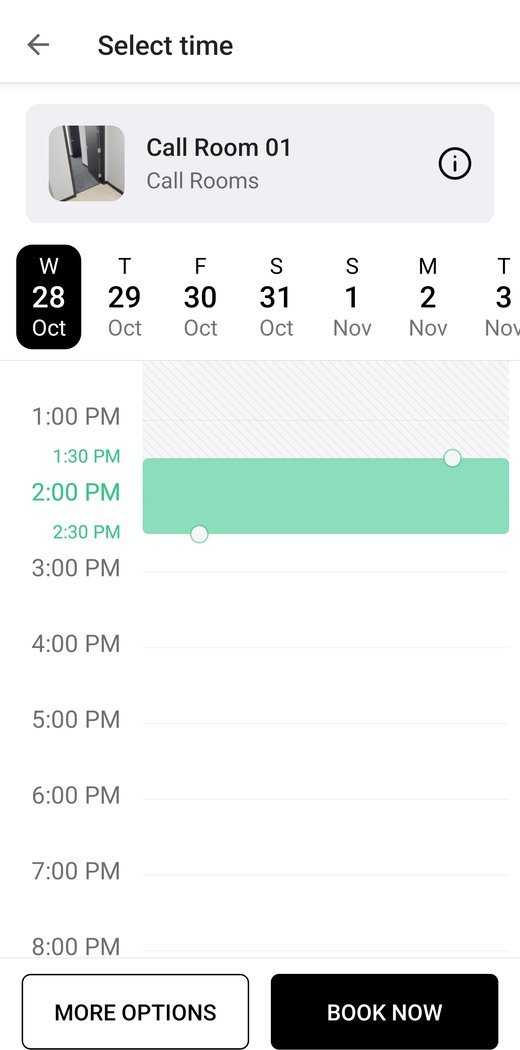
Drag the sliders to set your start and end time. Add the details, if you want
Tap More options to add a title, invite people, or choose your plan. If your membership includes conference room hours, choose your plan here so the time comes out of your allowance. If it shows No Plan, the booking is charged, so tap Cost/Plan to pick your plan.
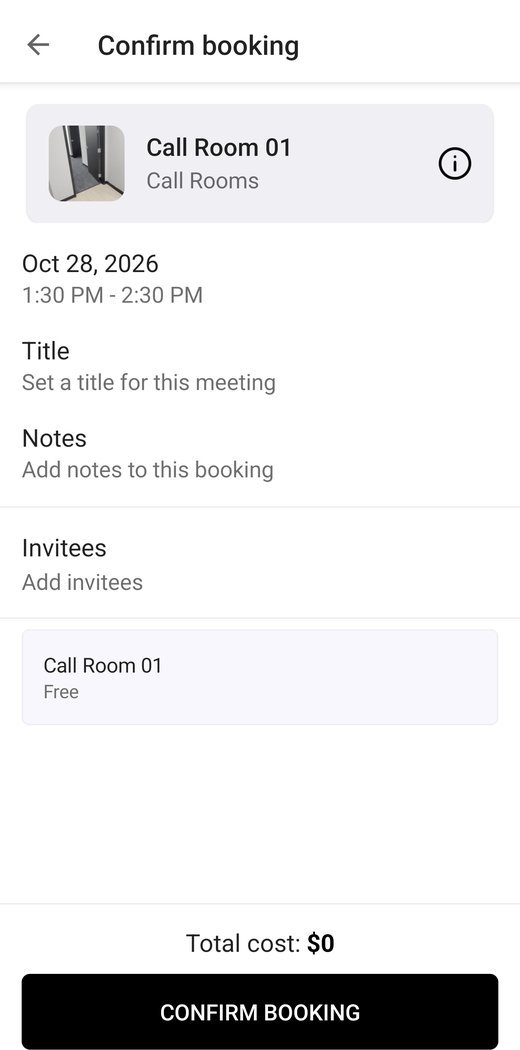
Choose your plan here so included hours are used. Confirm
Tap Confirm booking. You will get a confirmation email with links to add it to your Google, Outlook or Apple calendar.
Changing or cancelling
Find your booking
Open the Menu and choose Bookings. Tap the booking you want.
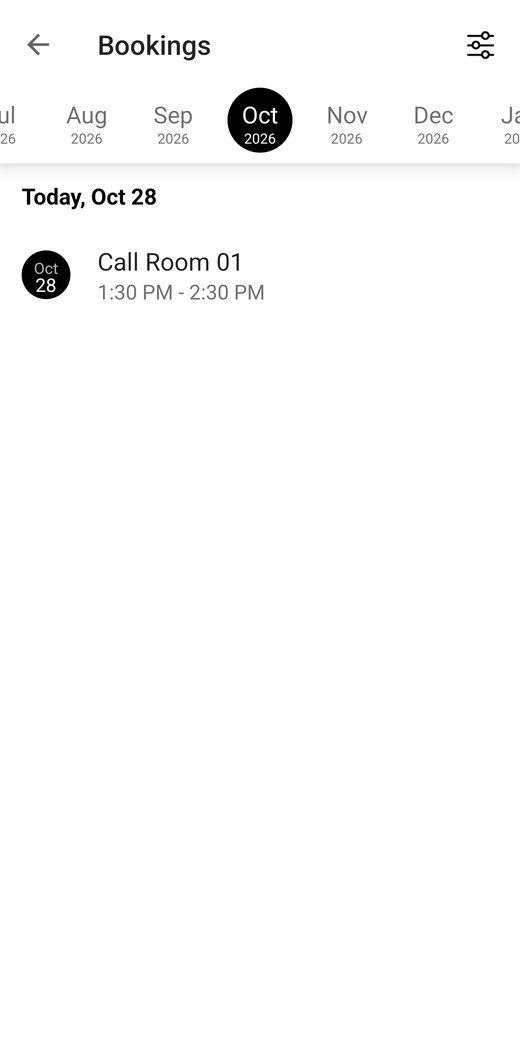
All your upcoming bookings, in one list. Edit or cancel
Use the buttons at the bottom of the booking to change it, invite people, or tap Cancel booking.
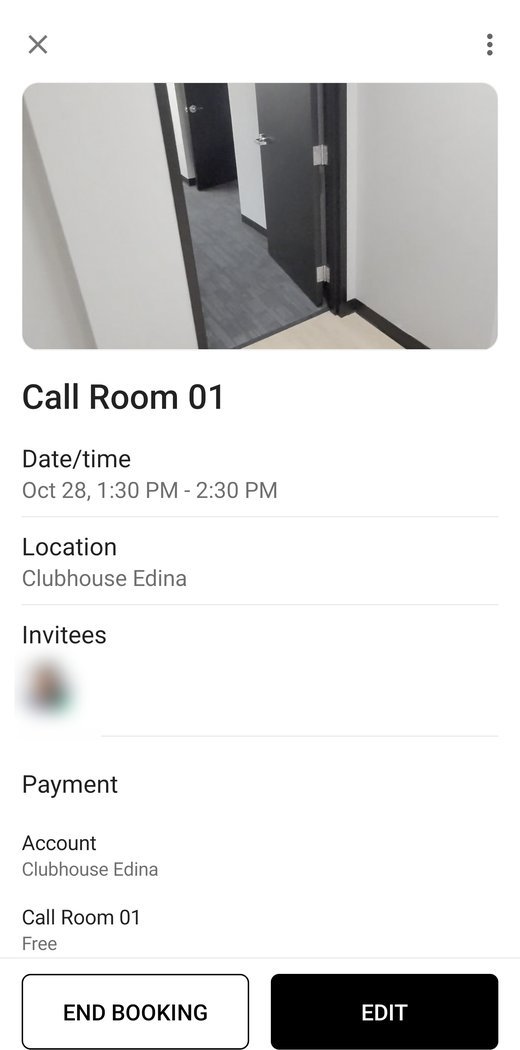
Your booking details, with Edit at the bottom.
You can cancel or change a booking yourself up to 4 hours before it starts. Inside 4 hours, the booking is charged as normal, even if you cancel it.
Running long? While a booking is running, tap the booking bar at the bottom of the home screen to extend it, as long as nobody has the space right after you.
Included hours
Your membership, or your company’s team membership, comes with a monthly allowance of included hours. That allowance is what sets how much you can book.
- Bookings come out of your allowance first. Choose your plan under More options when you book, so the time is counted against it.
- Once the allowance is used up for the month, you can still book. Extra time is charged at the member rate, and the app shows you the charge before you confirm.
- Personal or team. Some allowances belong to you, some to your company’s team. When you choose your plan while booking, you will see which one the time comes from.
- See what is left any time under Menu, then Plans, then your plan.
A few more things
- Guests are welcome. Anyone you invite to a booking gets an email, even without an account. Golf guests in the bays carry a guest fee per session. Guests at a meeting do not.
- Member names show on the schedule, so it is easy to see who has a space and find each other.
- Book up to six months ahead. The calendar in the app lets you book any time in the next six months.
- A time will not book? It is usually already taken, or outside the hours that space can be booked. Message us with Contact Admin and we can help.
Message us in the app with Contact Admin, email info@clubhouseedina.com, or find us at the club. We will sort it out.
This guide was prepared for Clubhouse Edina by Dragan Holdings. Screens in the app can change, so if something here does not match what you see, let us know and we will update it.